How to use Hangout
Hangout is the studio's private chat, with Claude built in and North Star checking everything Claude writes. Use it in Chrome or Edge, signed in with the Google account the owner added.
- Getting in
- Chatting
- Calls
- Talking to Claude
- Radio
- Studio tools
- Game night
- Commands
- Owner and co-owners
- Automatic posts
Getting in
You sign in with Google, sign the team agreement once, then pick your roles.
- Open Hangout and press Sign in with Google. Only Google accounts the owner added, or invited, get in.
- Read the team agreement to the bottom, tick the box and type your full name. Nothing else works until you sign, and everyone signs again if the text changes.
- Press the gear next to your name and tick every role that fits you: Dev, Modeler, Multivoice Actor, Idea / Character Dev. Roles open the role-only channels and let people ping you with
@Devand so on. - Add a one-line bio in the same place. It shows on your profile card.
On a phone the channel list slides in from the menu button, and you tap a name to see someone's card.
Joining by invite: the owner or a co-owner sends a link. You open it, say who invited you and what you will work on, and continue with your own Google account. The owner approves every join, then you get a short tour, a first small task for your role, and a buddy.
Your settings follow you. What you have read, your open private chats and your settings move with your account to any browser or phone.
Chatting
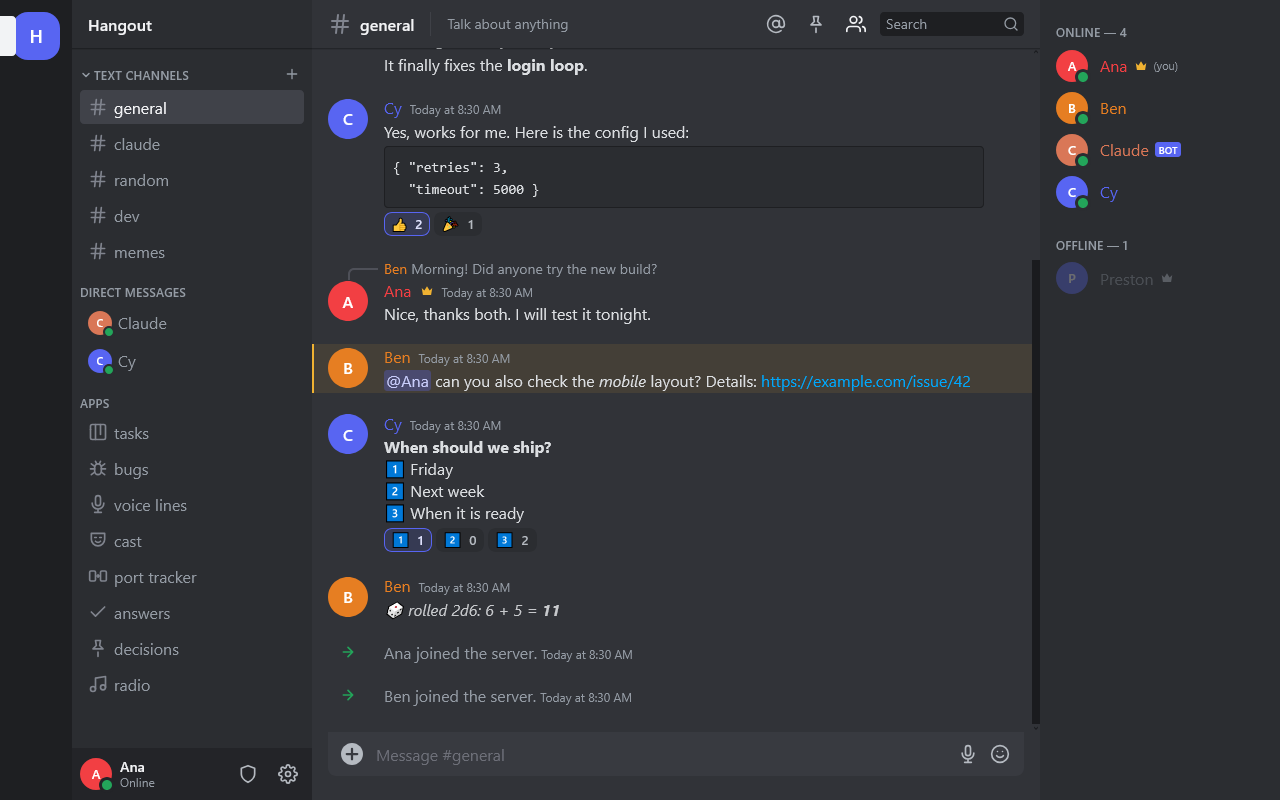
Channels sit in groups down the left: Studio, Voice, Development, Art, Story, Audio, AI, Projects, Staff and Off-topic. Click a group's name to fold it. The line at the top of each channel says who can see it and whether it is read-only.
| To do this | Do this |
|---|---|
| Message one person privately | Click their name in the member list, or Message on their card |
| Reply to a message | Hover it and press the reply arrow |
| React | Hover it and press the smiley |
| Edit or delete your own message | Hover it, or press the Up arrow to edit your last one |
| Start a side conversation | Hover a message and press Start a thread; it opens on the right |
| Share files, pictures, a voice note | The + button, drag and drop, paste, or the microphone button (up to 25 MB a file) |
| Format text | **bold**, *italic*, ~~strike~~, `code`; Shift+Enter for a new line |
| Ping someone or a whole role | @Name or @Dev (autocomplete pops up) |
| See what mentioned you | The @ button at the top |
| Pin a message | Hover it and press the pin; the pin button at the top lists them |
| Keep a message as the answer | Hover it and press the tick; it goes on the Answers page |
| Turn a message into a task or a bug | Hover it and press the board or bug button |
| Search | Type in the search box to filter this channel; press Enter to search everything you can see |
| Hear a message | Press its speaker button; Esc stops it |
| Switch channel | Alt+Up or Alt+Down |
- Unread channels turn white, and a red NEW line shows where you stopped. A While you were away card sums up what you missed.
- Read-only channels: only staff post in
#announcements; only Hangout writes in#loreand#call-log. - Forum channels (
#bugs,#playtest): each post gets its own thread. - Projects: one channel per game, with a switcher that shows one project at a time.
- Suggestions while you type: after a pause, three short ways to finish your message appear. Click one or press Alt+1, 2 or 3. Nothing sends until you press Enter. Switch it off in Settings, Notifications.
Calls
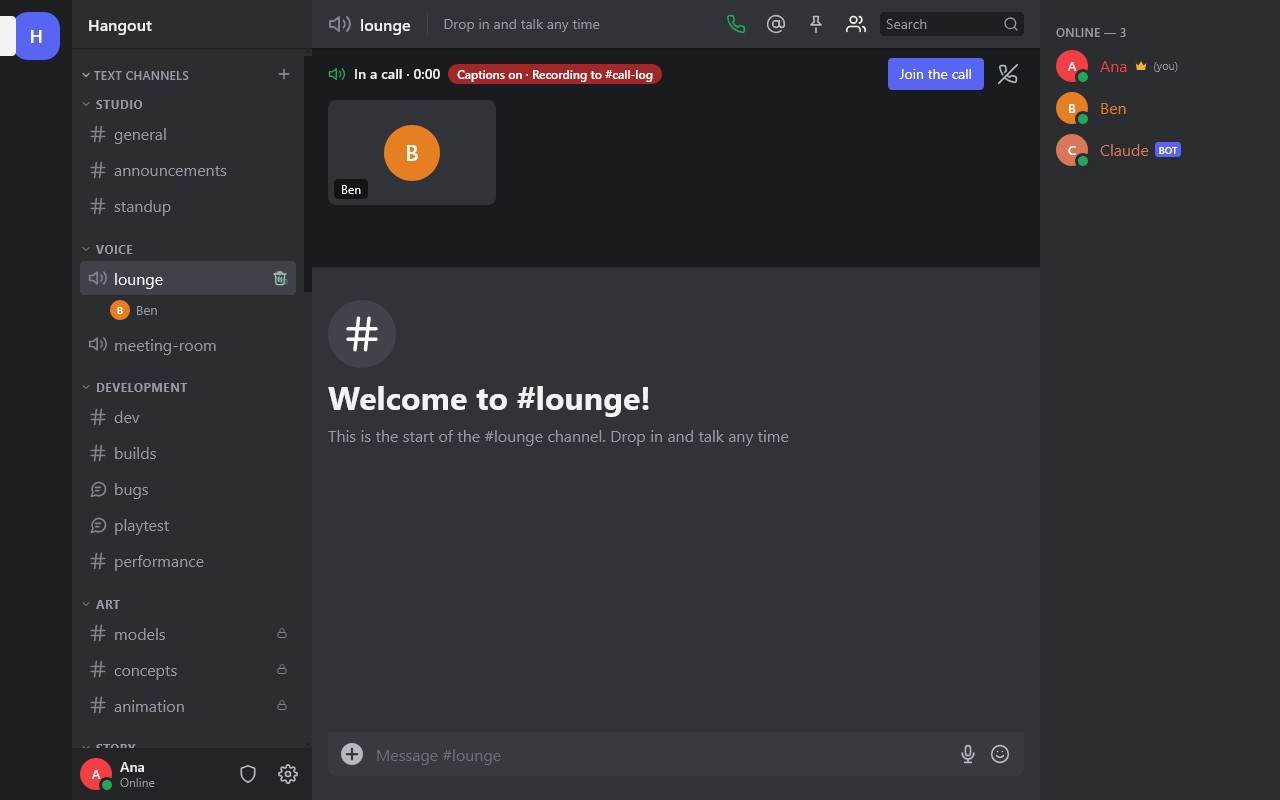
Press the green phone at the top of any channel or private chat to start or join its call. #lounge and #meeting-room, under Voice, are rooms made for calls. The browser asks to use your microphone the first time.
- Start or join: press the phone button, or Start a call / Join the call on the call panel. Who is in a call shows under the channel's name.
- Ring people: in a private chat, starting a call rings the other person. In a channel, press the bell on the call panel to ring everyone online who can see it.
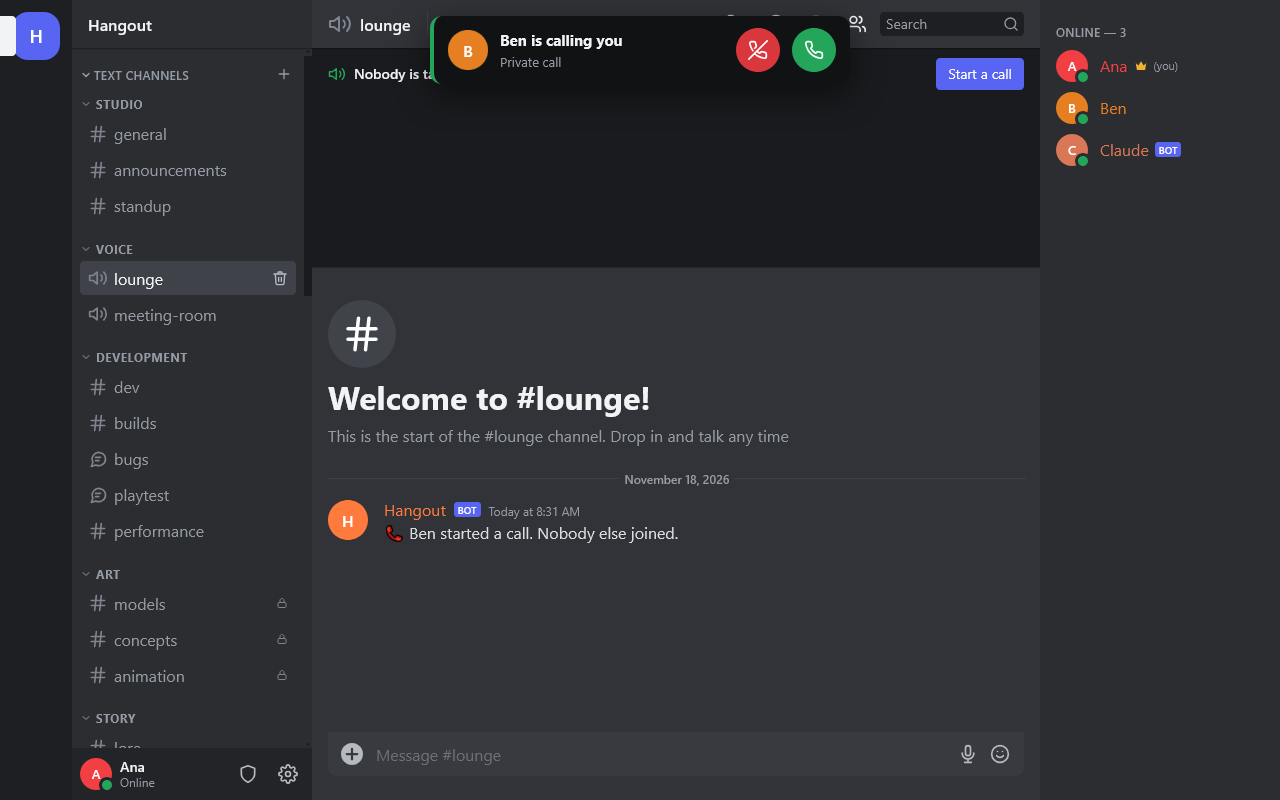
- Answer: a ring pops up at the top on every device you are signed in on, for 30 seconds. Press the green button to answer or the red one to decline. A private call nobody answers leaves "Missed call" in the chat.
- Leave: the red phone on the call panel, or on the call bar above your name.
| Button | What it does |
|---|---|
| Microphone | Mute or unmute yourself |
| Headphones | Deafen: hear nothing and mute yourself |
| Camera | Turn your camera on or off |
| Screen | Share your screen (or one window) |
| CC | Show or hide captions on your screen |
| Gear | Pick a microphone; noise suppression; echo cancellation; push to talk (hold Space) |
- The call bar above your name keeps mute, deafen and leave handy while you chat elsewhere. Click it to go back to the call.
- Whoever is talking gets a green ring around their picture.
- Hangout Radio goes quiet for you during a call and comes back after.
- One call at a time. Joining another call leaves the first. Ringing someone who is already in a call tells you they are busy.
Captions and #call-log
- In Chrome and Edge, your browser turns what you say into captions everyone in the call sees. Firefox can't, and the call panel says so. A badge reads "Captions on · Recording to #call-log" while captions are being made. Chrome sends the audio to Google to turn it into text.
- When a call ends, its channel gets a line saying how long and who.
#call-loggets Claude's notes, checked by North Star: Decisions, Tasks, Open questions, Ideas, with the full transcript in the post's thread. Calls under two minutes get no notes. - Tasks in the notes go on the task board, saying which call they came from.
- A private call is written up in that private chat only, and makes no tasks.
- Nobody can type or delete in
#call-log. Staff can hide a call's notes; the record is kept. - Type
/recall what did we decide about the boss fight?to get an answer from past call notes, naming the call. Only you see it, and it only searches calls you could have been in.
Talking to Claude
Claude answers anything in #claude and in a private chat with it. Anywhere else, start with /claude, write @Claude, or reply to one of its messages.
- Answer and look things up. It reads the last 60 messages for context, searches the web, and ends those answers with its sources.
- Run the boards. "Add a task for the modelers to finish the garage by Friday", "mark task 4 done". It works out real dates and matches people by name.
- Write up the day.
/notesposts decisions, who is doing what and open questions, and puts each clear commitment on the task board. - Keep the lore. Tell it facts about the world and characters and it saves them in the lore book;
/lorereads it./script the scenewrites a recording-ready script and adds it to the voice line tracker. - Find old messages. "What did we decide about the garage?" searches the whole history of the channels you can see.
- Use the shared browser. Ask it to open or do something on a website and it drives the Firefox in
#browserwhile everyone watches. - Remember. Tell it something to remember and it keeps a note; ask it to forget and it deletes it.
- See pictures people share.
- Build things, if you're a Developer. "Make a project for my Discord bots and write cell.py" saves real files under Apps → projects, so nothing gets lost when a chat scrolls away. Ask it to change a file and it reads the file first, then saves a new version. Keys and tokens never go in files. Once the owner has approved a project, Claude can also start or restart its program and read the log to fix what broke.
Claude acts with your permissions: it won't add a task or change the lore for someone who isn't allowed to.
#north-star, and anything you write there is read as a suggestion. It never pushes Claude past a real refusal.Hangout Radio and Watch Together
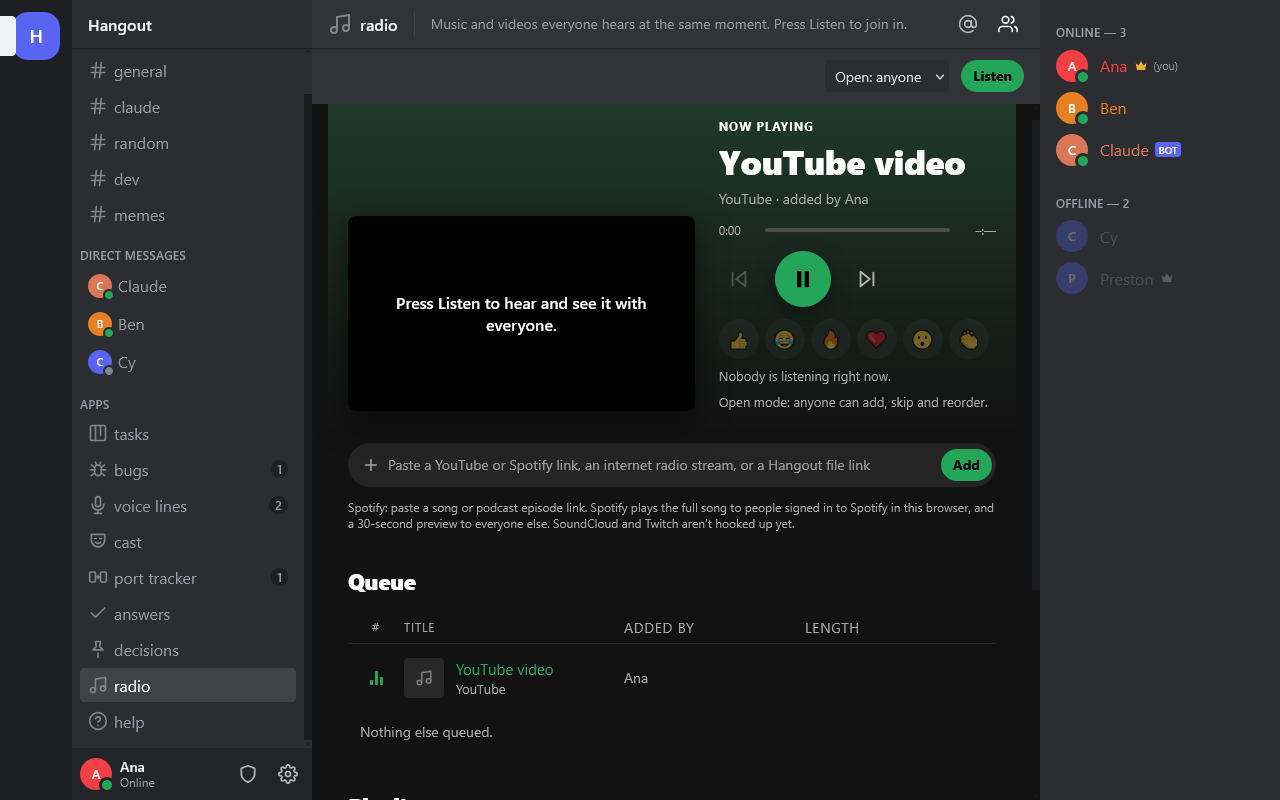
One station for the whole server: everyone who presses Listen hears and sees the same moment. Open it from Apps → radio, or type /queue.
- Add something: paste a YouTube or Spotify link, an internet radio stream (https) or a link to a file uploaded to Hangout, or type
/play <link>. - Listen: nothing plays until you press Listen, and opening Hangout never starts music.
- Control it: play, pause, seek, skip, go back, reorder the queue.
/skipskips;/npposts what is playing in the channel. - React: the emoji buttons float up over the video for everyone watching.
- The player is large on the Radio page and moves to a corner while you chat, with a stop button.
- Modes: Open (anyone runs it), Host (whoever picks Host is the DJ), Vote (anyone adds; skipping takes a majority of listeners). The owner and co-owners can always pause it.
- Spotify: paste a song or podcast episode link (in Spotify: ··· → Share → Copy song link). Hangout finds the same song on YouTube and plays that for everyone, full length, with no Spotify sign-in; the queue says "full song from YouTube". If it can't find it, Spotify's own player is used, which plays the full song only to people signed in to Spotify in that browser and a 30-second preview to everyone else. For an album or playlist, add its songs one at a time and save them as a playlist.
- Playlists: press Save the queue as a playlist, name it and pick its project. Playlists are grouped by project, and the search box finds a playlist by its name, project, who saved it, or a song inside it. Queue it adds the songs to the queue.
- Not yet: SoundCloud, Twitch, and searching YouTube or Spotify inside Hangout.
Studio tools under Apps
The Apps list at the bottom of the sidebar holds the studio's boards and trackers. Each shows a count of what is still open.
| App | What it is | How to use it |
|---|---|---|
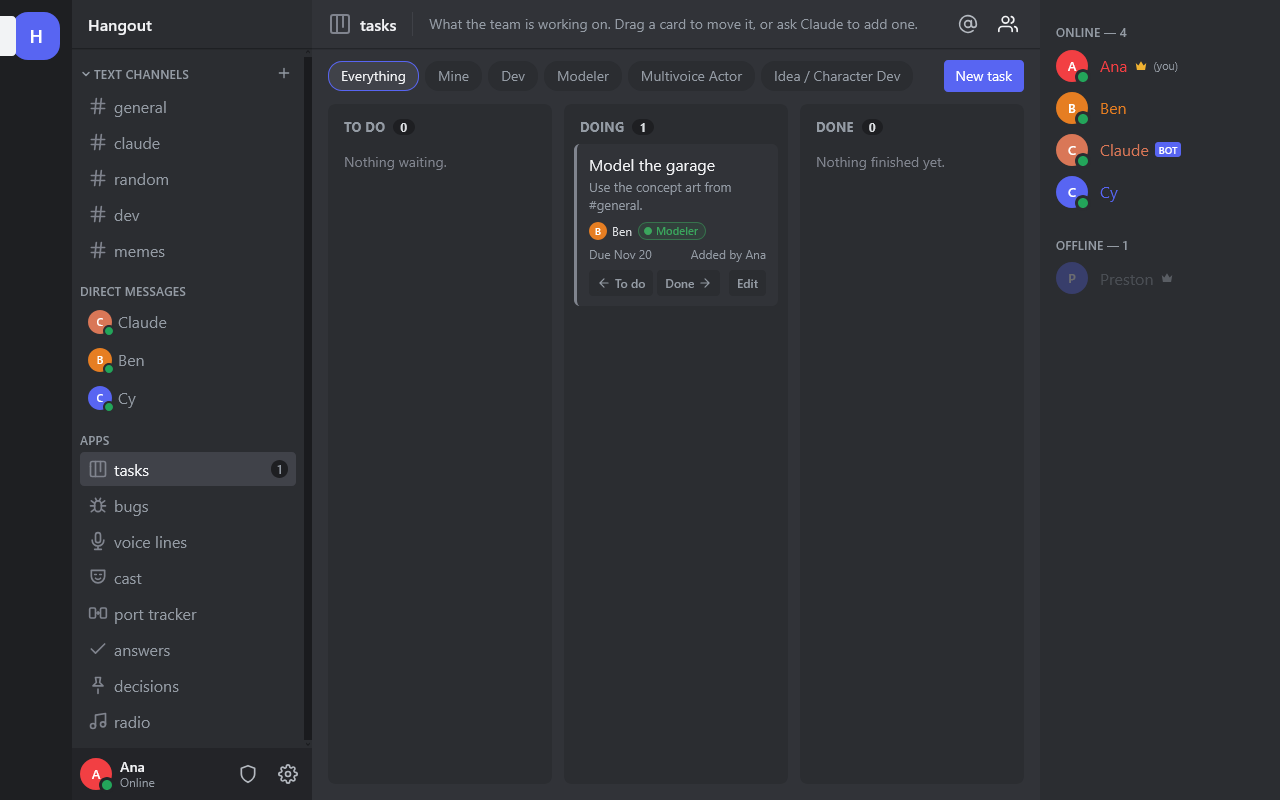
| tasks | To do, Doing, Done | Add a card with a person, roles, a due date and notes. Drag it between columns. Filter by Mine or a role. /task adds one from chat |
| bugs | Reported, Fixing, Fixed | /bug what is broken, with how bad it is and a screenshot. Repeats are marked "Same as" and dimmed |
| voice lines | Every script as a checklist of lines | Press Record a take on a line; press Pick on the take to use. Filter to one character |
| cast | One card per character | Who voices them, their look, their lore entry, and how many lines are recorded |
| port tracker | Everything moving from Roblox to Unreal | Not started, In progress or Done, with an owner and notes |
| answers | Messages marked as the answer | The tick on any channel message puts it here |
| decisions | What was decided | /decision what was decided; /notes write-ups land here too |
| radio | Hangout Radio | See Radio above |
| projects | Code projects kept on the server (Hangout Dev) | Everyone can read them and download a zip. Developers (the owner picks them) can make projects, write files, and ask Claude to build things there. Every save is a version: History shows what changed and can bring an old one back. The Run tab runs a project's program (a Discord bot, a script) on the server: the owner approves a project once, then Developers start, stop and restart it, add its keys as Secrets (stored encrypted, never shown again) and watch its log. Each program runs locked away from Hangout and its data. A program can chat as bot accounts (added on the Run tab; they show with a BOT tag) using the hangout.py library, which works like discord.py. Bots see open channels only, never role-only channels or private chats, and the kill switch silences them. New project → Start from: Crazy and Rats sets up the two Asylum bots |
| rubber-room, court-room | The Asylum: where the Crazy and Rats bots live | Open to everyone. In #rubber-room anyone can rename anyone for that room only with /nick. In #court-room, play the judge and Rats prosecutes while Crazy defends |
| help | This guide | Open it any time |
/build 0.4 | fixed the headlights | new garage posts a build in #builds, and Claude writes patch notes players can read.
Game night
On game night the owner runs a game on their own PC and streams it to everyone who joins. Nobody else needs the game installed. A banner at the bottom of Hangout shows what is on, with Join voice.
The first time (about 10 minutes):
- Accept the owner's Tailscale invite and install Tailscale on the device you will play on. It lets your device reach the owner's PC safely.
- Install Moonlight (free): Windows, Mac, Linux, Android, Fire TV, iPhone, iPad or Apple TV.
- Open Moonlight and pick the owner's PC. Moonlight shows a PIN: send it to the owner, who types it in once.
Every game night: join the voice channel from the banner, open Moonlight, pick the owner's PC, then the game. A controller works (Moonlight takes up to four on a PC), and so do a keyboard and mouse.
Steam co-op games can use Steam's own Remote Play Together instead: just accept the owner's Steam invite (on a phone, in Steam Chat; the game opens in Steam Link).
Only watching? Join the voice channel: when the owner shares their screen, everyone in the call sees the game live.
For the owner: press Game night next to a game in Apps → steam → Library (it starts the game on your PC) or on a build in Apps → games, pick the voice channel and where to post the invite. Press End on the banner when you are done. The first-time setup on your PC (Sunshine) is in the game streaming plan.
Slash commands
Type / in the message box to see the commands you can use; Tab completes one.
| Command | What it does | Who |
|---|---|---|
/claude question | Ask Claude anything, anywhere | Everyone |
/notes | Claude writes up today: decisions, who does what, tasks | Everyone |
/recall question | Answers from past call notes (only you see it) | Everyone |
/summarize | Catch up on this channel (only you see it) | Everyone |
/translate text | Translate, or /translate to Spanish: text | Everyone |
/task what needs doing | Add a task | Everyone |
/bug what is broken | Report a bug | Everyone |
/decision what was decided | Record a decision | Everyone |
/script the scene | Claude writes a script for the voice actors | Everyone |
/lore, /lore name | Read the lore book | Everyone |
/build 0.4 | change | change | Post a build; Claude writes patch notes | Everyone |
/play link, /queue, /skip, /np | Hangout Radio | Everyone |
/poll Question | A | B | A poll with a button per option | Everyone |
/roll 2d6, /me action, /shrug | Dice, an action, a shrug | Everyone |
/nick @someone new name | In #rubber-room only: rename someone for that room (/nick me … for yourself, /nick @someone gives their name back). Their real name shows when you hover over it. Nobody renames the owner but the owner | Everyone (the owner can change who in Permissions) |
/northstar | What North Star is doing and its rules | Everyone |
/help, /clear | List commands; clear the channel on your screen | Everyone |
/pausebot | Pause or resume the bots in this channel | Staff |
/digest | Post the daily digest now | Staff |
/killswitch on, /killswitch off | Stop or restart every bot everywhere | Owner |
/backup, /backup status | Make a backup now, or see the last one | Owner |
/transfer @name, /transfer cancel | Hand the server over after a 24-hour wait | Owner |
/approver @name, /approver off | A backup approver for joins, only after the owner has been away 48 hours | Owner |
Shortcuts: Up arrow edits your last message, Esc cancels a reply or edit, Alt+Up/Down switches channel.
For the owner and co-owners
The owner has a gold crown, co-owners a silver one. Everything below is in Settings (the gear by your name), and the shield next to it opens North Star's flags.
| Settings page | What it is for | Who |
|---|---|---|
| Overview | Usage meter, kill switch, paused channels, backups, Export | Owner (some parts staff) |
| Team | Who may sign in, their roles, co-owners, lead roles, agreement signed or not; Make Developer; time out, kick or ban beside each person | Staff; only the owner adds co-owners |
| Team activity | Who is online and where, live activity, work by person, sign-ins | Owner |
| Invites | Make an invite link with roles, uses, how long it lasts and who it is for; QR code | Staff make links; the owner approves joins |
| Moderation | Bans, timeouts and role requests in force | Staff |
| Permissions | Who may do what: Everyone, certain roles, staff, or the owner alone | Owner |
| North Star | Flags and blocks, with the audit log and kill switch a press away | Staff |
| Audit log | Every moderation action, permission change, call action and signature; it can't be edited or emptied | Staff |
| Emoji | Add custom emoji, used as :name: | Staff |
The owner lock: nobody can act on the owner, and a co-owner can't act on another co-owner. Only the owner changes permissions, adds co-owners, approves joins, uses the kill switch, runs backups and hands the server over. The owner gets a live alert when a co-owner bans, kicks, times out or deletes a channel.
Moderating: hover a message to delete it (co-owners can't delete the owner's). Hover a channel in the sidebar for its delete button (#general stays). In a call, hover someone's tile to mute them for everyone or remove them; the phone-off button ends the call for everyone. In #call-log, the lock button hides a call's notes.
Private chats: only the two people in a chat read it. The owner can open one from Team activity only, each opening goes in the audit log, and co-owners never can. Search, exports, Claude and North Star never show a private chat to anyone else.
What Hangout does by itself
Times are the server PC's clock.
| When | What |
|---|---|
| Every day, 9:00 | Standup reminder in #standup, and Claude's daily digest in #general (quiet days skipped) |
| Every day, 17:00 | Claude rolls up the day's standup posts |
| Every morning | Yesterday's mentions, for anyone who switched that on in Settings, Notifications |
| Friday, 16:00 | A week in review in #announcements |
| Monday, 9:00 | A private digest for the owner of what each person did |
| Every 3 hours | A North Star round in #north-star; Claude may speak up in #general at most every 6 hours |
| Every night | A backup of everything |
Quiet hours (Settings, Notifications) hold back pop-ups and the ring sound.